 Reviewed by Technical Support Team
Most merchants leave the Shopify Buy Button sales channel for one of three reasons:
- their embed code broke again,
- their discount apps stopped working on external pages, or
- they realized they had no idea which blog post was actually driving sales.
If you’re facing these issues, you need to consider a Shopify Buy Button alternative.
If you're ready to migrate from Shopify Buy Button to EmbedUp, here's what you need to know upfront: it's a manual process, there's no automatic import, and that's fine. Most merchants do not have complex Buy Button data to migrate. The important work is documenting where each embed appears, recreating it in EmbedUp, and testing the replacement before removing the old code. You can keep your Buy Button embeds running while you set up EmbedUp in the background, so there's no downtime and no gap in sales during the switch.
This guide walks you through every step.
- Migrating from the Shopify Buy Button to EmbedUp is a manual process.
- You can run both simultaneously during the transition, so there is no planned downtime and less risk to live sales during the switch.
- The process is straightforward: install EmbedUp, recreate each embed as a component, replace the old script tag with the new one, and test.
- Plan before you start: Starter supports 1 component with up to 3 products, Growth supports 10 components, and Pro supports 50 components.
- Once you've migrated, you get a more modern external selling setup with stronger App Store compatibility, affiliate and UTM attribution, preset bundle options, inventory checks before checkout, and easier component-level tracking.
Table of Contents
Why Merchants Are Leaving the Shopify Buy Button
Shopify still documents the Buy Button sales channel, but the technical foundation around Buy Button JS has changed. Shopify deprecated the JS Buy SDK in January 2025, and Shopify’s own Buy Button JS documentation tells merchants to update older Buy Button JS code to maintain functionality.
The structural limitations that pushed merchants away from the Buy Button are worth knowing before you migrate:
- Limited cart experience: the Buy Button uses embedded cart components, which can feel separate from the main storefront cart and may create a less connected buying experience on external pages.
- No App Store compatibility: discount apps, review apps, and checkout customization apps don't work through Buy Button embeds.
- Conversion tracking blind spots: external pages and checkout redirects can make attribution harder if tracking is not configured properly, so merchants may struggle to see which page drove the sale.
- Rendering issues: older embed code, theme changes, page-builder changes, or outdated Buy Button JS versions can cause rendering issues.
What to Know Before Setting Up a Shopify Buy Button Alternative
A few things worth establishing before you migrate from Shopify Buy Button to EmbedUp.
The migration is manual. Most Buy Button setups do not include complex data migration. The main task is recreating each embed as an EmbedUp component and replacing the old code. For most merchants, that means a handful of pages and an hour or two of work.
Both can run at the same time. You can set up EmbedUp on one page while the Buy Button is still live on others. Migrate at whatever pace works for you and cut over fully when you're satisfied.
Pick the right plan before you start. EmbedUp's Starter plan is free forever and supports one component with up to 3 products. If you have more than one Buy Button embed, you'll need Growth ($14.99/month, up to 10 components) or Pro ($29.99/month, up to 50 components). Both paid plans come with a 5-day free trial. Count your existing embeds before installing so you're not mid-migration on the wrong plan.
How to Migrate from Shopify Buy Button to EmbedUp
Step 1: Install EmbedUp
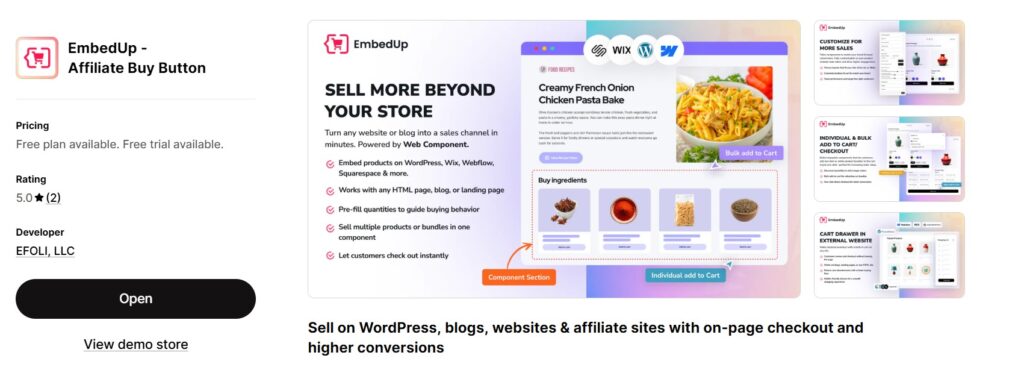
Install EmbedUp. No credit card is needed to get started. Starter is free permanently, and Growth and Pro both start with a 5-day free trial. Approve the permissions and open the EmbedUp dashboard. You'll be building your first component from here.
Step 2: Take Stock of Your Existing Buy Button Embeds
Before you build anything, make a list. Go through every external page, blog post, WordPress site, or partner page where you have a Buy Button embed. Note the product or collection each one features. This becomes your migration checklist, and working through it in order keeps the process clean.
If matching your current embed's visual styling matters to you, take screenshots of each one before you start. EmbedUp gives you more customization options than the Buy Button, but having a reference makes it faster to get the look right.
Step 3: Create Your EmbedUp Components
For each Buy Button embed on your list, create one EmbedUp component. Open the dashboard, select the same product or collection the Buy Button was featuring, and customize the layout, design, and checkout behavior. EmbedUp's builder shows a live preview as you work, so you can see exactly how it will look before generating the embed code.
Growth plan merchants can create up to 10 components. Pro plan merchants can create up to 50. If you're on Pro, this is also the stage where you can configure affiliate tracking and UTM campaigns per component, so each embed is set up for attribution before it goes live.
Once you're happy with the component, copy the embed code. It's a single script tag, similar in format to what you're replacing.
Step 4: Replace the Embed Code
Go to each page on your migration checklist. Find the existing Buy Button script tag, which typically sits in the HTML near the bottom of the content area. Delete it entirely, then paste the new EmbedUp embed code in its place.
When you replace Shopify Buy Button embed code, the process works the same way across WordPress, Webflow, Wix, Squarespace, and any other site that accepts HTML. If you're using WordPress's block editor, use a Custom HTML block, the same way the Buy Button was originally inserted. Preview the page after each replacement to confirm the component is rendering correctly.
Step 5: Test Before You Cut Over
For each page you've updated, run through a basic check:
- Load the page on both desktop and mobile
- Add a product to cart
- Complete a test purchase
- Confirm The Order Appears In Your Shopify Admin
If you're on Pro, also open the EmbedUp analytics dashboard and verify that UTM attribution is firing correctly for the component on that page.
Skipping this step is how a broken checkout link goes unnoticed until a customer finds it first.
Step 6: Remove the Buy Button Channel (Optional)
Once every embed has been replaced and tested, you can remove the Buy Button channel from your Shopify admin. Go to Settings, then Sales Channels, find the Buy Button channel, and select Uninstall. Shopify will ask you to confirm that you understand the channel's removal will affect any script tags still active on your pages. Before you uninstall, do a final check to make sure no old script tags remain.
Before uninstalling, ensure all Buy Button orders are fulfilled and any returns or refunds are completed. After uninstalling, you’ll lose access to publishing Buy Button products, managing orders and refunds, and monitoring performance.
Removing the channel is optional. It doesn't affect EmbedUp or your Shopify store. But it keeps your admin clean and removes any ambiguity about which channel is serving your external embeds.
What Else You Can Do With EmbedUp Now
Once the migration is complete, EmbedUp gives merchants a more campaign-ready external selling setup than a basic Buy Button embed.
On Growth and above, you can configure preset quantities per product variant within a component, so customers see a fixed quantity rather than a manual input. Inventory is also checked before checkout, which prevents overselling on embedded pages. You can enable one-click add-all-to-cart for components featuring multiple products, which is useful for curated sets or bundles where you want the customer to take the full selection in a single action.
On Pro, you can create and manage affiliate partners directly inside EmbedUp, assign specific components to specific affiliates, and track commissions and sales at the individual embed level. UTM campaign tracking gives you per-embed revenue attribution across every blog post, partner page, and campaign page. For merchants who have been embedding Shopify products on external sites without knowing which placements are converting, this is where that changes.
Regardless of plan, you can embed entire Shopify collections rather than individual products. The component stays in sync with your Shopify inventory in real time, so price changes, new variants, and stock updates appear automatically on every external page where that collection is embedded.
Migrate From Shopify Buy Button to EmbedUp: FAQ
Is Shopify Buy Button officially discontinued?
Not exactly. Shopify has deprecated the JS Buy SDK as of January 2025, but Shopify still documents the Buy Button sales channel. The safer way to explain it is that older Buy Button JS setups rely on technology Shopify no longer maintains, so merchants should review whether the setup is still right for long-term external selling.
Can I keep my Buy Button embeds live while setting up EmbedUp?
Yes. The two can run on the same site simultaneously without interfering with each other. You can migrate one page at a time and only remove the Buy Button embeds once you've confirmed EmbedUp is working correctly in their place.
Will my existing Shopify orders be affected when I switch?
No. Orders already placed through the Buy Button are unaffected. The migration only changes how new purchases are processed on your external pages going forward.
How long does the full migration take?
It depends on how many embeds you have. Most merchants with three to five Buy Button embeds should expect one to two hours from install to fully tested. Each component takes around ten to fifteen minutes to build, and replacing and testing each page adds another five to ten minutes.
Do I need to upgrade to a paid plan to migrate?
Only if you have more than one Buy Button embed. Starter is free and supports one component. If you have two or more embeds to replace, you'll need Growth or Pro. Both have a 5-day free trial, so you can complete the full migration before being charged.
What happens to my Buy Button embeds if I uninstall the channel before replacing the code?
The script tags stop rendering. Any page with an old Buy Button script tag that hasn't been replaced will show a blank space where the embed was. Complete the full migration and test every page before uninstalling the channel.
Conclusion
If your Buy Button embeds have been reliable and your needs are simple, there's no urgent deadline forcing the move today. But if you're dealing with broken embed code, missing App Store compatibility, or no visibility on which external pages are driving sales, those problems aren't going to resolve themselves. The JS Buy SDK deprecation means older Buy Button JS setups should not be treated as a long-term growth system. For merchants who need app compatibility, better attribution, and more controlled embedded selling, moving to a dedicated embed solution is the safer path.
When you migrate from Shopify Buy Button to EmbedUp, the process takes a couple of hours for most merchants. Both channels can run in parallel until you're confident everything is working. Most Buy Button setups do not require complex data migration. For merchants who want better tracking, a connected cart, and clearer sales data from external pages, completing the switch makes external selling easier to manage.
Syeda Rehnoma Tanzom
This article was reviewed by the EmbedUp Technical Support Team, who regularly helps Shopify merchants test embedded product displays, component setup, add-to-cart behavior, product syncing, and checkout flow issues.