How to Sell Shopify Products on a Webflow Site (3 Ways Compared)
 Anika Anamta Mehnaz16 min read

On this page
- Key takeaways
- Can you use Shopify with Webflow?
- What to check in Webflow first
- Way 1: Shopify's Buy Button
- How to add a Buy Button to Webflow
- Where the Buy Button falls short on Webflow
- Way 2: a sync app
- Way 3: an embed app like EmbedUp
- How to add Shopify products to Webflow with EmbedUp
- What EmbedUp adds that the Buy Button doesn't
- What EmbedUp won't do
- How the cart and checkout work in each way
- What each way costs
- What updates by itself, and what you redo by hand
- Which way should you choose?
- Three example setups
- A coffee brand with a story-led Webflow site
- A furniture studio that designs everything in Webflow
- A ceramicist selling one product a season
- Does selling on Webflow help or hurt SEO?
- Test before you share the page
- Common problems and fixes
- Moving from Webflow Ecommerce to Shopify
- Already on Wix, Squarespace or WordPress too?
- The short version
- Frequently asked questions
There's no official Shopify app for Webflow, so you have three ways to sell Shopify products on a Webflow site: Shopify's free Buy Button, a sync app that copies products into Webflow CMS, or an embed app like EmbedUp. In all three, Shopify still handles the cart and checkout, so payments, orders, and stock stay in one place.
Which one fits depends on one question: is Webflow your whole store, or the place where you tell your story and sell from content? This guide compares the three on design, cost, setup, and upkeep, then shows how to set up each one.

Key takeaways
Webflow says there's no official Shopify app on its Marketplace. Third-party apps and Shopify's Buy Button fill the gap (Webflow).
Any of the three ways needs a Webflow site plan with custom code: the CMS plan ($23 a month) or higher. You don't need Webflow's Ecommerce plan.
The Buy Button is free but runs in an iframe, so it can't use your Webflow fonts and styles.
Sync apps let you design full product pages in Webflow. They cost more and take longer to set up.
EmbedUp suits brand sites that sell from launch pages, blog posts, and lookbooks. It's free for 1 component; custom CSS is on Growth ($14.99 a month).
Embeds don't show in the Webflow Designer. Always test on the published site.
Old custom builds that used Shopify's Checkout API stopped working on 1 April 2025. New builds must use the Cart API.
Can you use Shopify with Webflow?
Yes. Shopify runs the products, stock, payments, and orders. Webflow runs the pages. You connect the two by placing Shopify products on Webflow pages, and the shopper checks out through Shopify.
What you can't do is install "Shopify for Webflow" in one click. Webflow's integration page says no official Shopify-built app exists on the Webflow Marketplace (Webflow). It also notes that the Shopify connection doesn't need Webflow's Ecommerce plan, because Shopify does the selling.
Why do brands use both? Webflow gives designers control of every pixel, which is why it's popular for brand sites, launch pages and editorial content. Shopify gives the checkout, payments and order tools that Webflow Ecommerce is lighter on. Webflow's own page suggests Shopify becomes the better fit once a catalog passes about 100 products.
What to check in Webflow first
Before you choose a way, check these four points from Webflow's Shopify integration page and Help Center:
Check | What Webflow says | What it means for you |
|---|---|---|
Site plan | Custom code and dynamic Buy Buttons need the CMS site plan ($23/month) or higher | A free Starter site can't run any of the three ways on a custom domain |
Designer preview | Code Embed elements don't render in the Designer; they show on the published site | Publish to your webflow.io staging address to preview |
Embed size | Up to 50,000 characters of code per embed | Fine for embed codes; long hand-written scripts belong in site settings |
Old custom builds | Shopify's Checkout API shut down on 1 April 2025; new builds use the Cart API | If an agency built a custom cart before 2025, check it still checks out |
Two more limits matter if you plan a big catalog in Webflow CMS: the CMS plan holds 2,000 items and the Business plan 10,000, and Webflow advises fetching live stock instead of storing it in the CMS, because stored stock counts go out of date quickly.
Way 1: Shopify's Buy Button
Shopify's Buy Button sales channel is free on every Shopify plan. You create a button for a product or a collection in Shopify, copy the code, and paste it into a Webflow Code Embed.
How to add a Buy Button to Webflow
In Shopify, add the Buy Button sales channel from the Shopify App Store.
Create a Buy Button, choose a product or collection, and set the button style.
Copy the code.
In Webflow, open the Add panel, drag a Code Embed onto the page, and paste the code.
Publish the site and test the button on the live page.
For many products, Webflow's Help Center describes a dynamic setup (Webflow Help): create a CMS collection with two plain-text fields, "Product component" and "Product ID", copy those two values out of each product's Buy Button code into a CMS item, then use one Code Embed that reads the fields. You can't call the collection "Products" because Webflow reserves that name for its own Ecommerce products.
Where the Buy Button falls short on Webflow
It can't match your design. The button renders in an iframe, so it can't use your Webflow CSS or design tokens (Webflow).
Restyling means new code. To change the look, you make a new button in Shopify and replace the code everywhere it's used.
Each product is manual work. In the dynamic setup, every new product needs its own CMS item and copied IDs.
Several buttons can crowd each other. The Webflow forum has threads about multiple Buy Buttons bunching together on one page.
Choose the Buy Button if you sell one to five products, don't mind Shopify's look, and want to pay nothing. Our post on Shopify Buy Button limitations covers the rest.
Way 2: a sync app
A sync app copies your Shopify products, variants, and collections into Webflow CMS. You then design product pages, collection pages and a cart in Webflow, using the synced data. The cart and checkout still run through Shopify.
Webflow names three apps: Storesynk, Looop, and Smootify. Storesynk is free on webflow.io addresses for up to 5 synced products, and its Launch plan is $59 a month for a custom domain, with a Multi-storefront plan at $177 a month (Storesynk on the Shopify App Store). Looop has a free tier with Looop branding and a paid tier for live inventory, and Smootify offers ready-made Webflow components (Webflow).
What to expect: you design the store yourself in Webflow, so setup takes hours or days, not minutes. Webflow notes that custom cart behavior can need a developer, and that live stock should be fetched at page load rather than stored in the CMS.
Choose a sync app if your whole store lives on Webflow: product pages, collection pages, filters, and search. If that's more work than you want, the other option is to move the store to a Shopify theme and keep Webflow for content.
For developers: you can also build the connection yourself with Shopify's Storefront API and Cart API, or with Storefront Web Components, Shopify's HTML components that show products and a cart on any site. Both need someone who writes code, and someone to maintain it.
Way 3: an embed app like EmbedUp
An embed app places shoppable product blocks on any page, styled to match your site. EmbedUp creates a "component" (one product, several products, chosen variants, or a collection) and gives you one embed code. Prices, variants, and stock come from your Shopify store, so you don't update the page when a price changes (embedup.com).
This fits Webflow sites that sell from content: a launch page, a blog post, a recipe, a lookbook, a "shop the look" section or a partner's site. You don't build product pages in Webflow; you add buying where people are already reading. See how to create a shoppable blog and embedded products for launch campaigns for examples.
How to add Shopify products to Webflow with EmbedUp
Install EmbedUp from the Shopify App Store. The free Starter plan covers 1 component with up to 3 products.
Create a component. Choose a collection or products, and pick specific variants if you want to.
Style it to match your site. Set the layout (grid, list or slider), button colors, font size, and corner radius. On the Growth plan ($14.99 a month), add custom CSS to use your Webflow fonts and spacing.
Choose how it adds to cart. Pick individual add to cart, or add all to cart for sets and bulk orders (Growth).
Copy the embed code from the component editor.
Paste it into Webflow. On a static page, open the Add panel and drag a Code Embed where the products should appear. Inside a CMS blog post, click the + in the Rich Text field and choose the HTML embed. Paste the code and save.
Publish, then test on the live site. Add a product, open the cart, and go through to Shopify's checkout.


What EmbedUp adds that the Buy Button doesn't
Styling you control, including custom CSS on Growth, so the block looks like the rest of your Webflow page.
A cart drawer that opens on your site, so shoppers can review the cart before checkout.
Bulk add to cart for sets, kits, and wholesale buyers (Growth), with an inventory check before checkout.
Affiliate and UTM tracking on the Pro plan ($29.99 a month), so you can see which page or partner sold what. That matters if your Webflow site is one of several places you sell from; see selling on affiliate websites.


What EmbedUp won't do
EmbedUp won't turn Webflow into a full store with product pages, collection pages, and filters. For that, use a sync app or a Shopify theme. The paid plans also have a 5-day trial, so plan your test before you start it.
How the cart and checkout work in each way
Shoppers care about one thing: does buying feel safe and simple? In all three ways, the payment happens on Shopify's checkout, so your payment methods, taxes, shipping rates, and discount codes work as they do in your Shopify store. The difference is what happens before checkout.
Buy Button: the shopper adds to a Shopify cart that opens over your page, then goes to Shopify's checkout. The cart looks like Shopify, not like your site.
Sync app: you design the cart in Webflow with the app's components, then hand the shopper off to Shopify's checkout.
EmbedUp: the shopper adds products to a cart drawer on your Webflow page, reviews it, then checks out on Shopify. Orders arrive in Shopify like any other order, with the product, variant, and quantity.
Because orders land in Shopify, your stock, fulfillment apps, and reports keep working. You don't run two order systems, which is the main reason to pair Shopify with Webflow instead of running Webflow Ecommerce alongside a Shopify store.
What each way costs
All three need a Webflow site plan with custom code. The difference is the connector and the time you spend.
Buy Button | Sync app (Storesynk) | EmbedUp | |
|---|---|---|---|
Webflow plan | CMS, from $23/month | CMS or higher | CMS, from $23/month |
Shopify plan | Any; Starter from $5/month | Any | Any |
Connector | Free | Free on webflow.io (5 products); $59/month Launch | Free (1 component); $14.99 Growth; $29.99 Pro |
First product, set up (our estimate) | About 30 minutes | Hours to days (you design the CMS pages) | About 15 minutes |
Changing the look | New button in Shopify, then replace the code | Design in Webflow | Edit the component in EmbedUp |

Prices are monthly in US dollars before tax, from each listing on 10 November 2026. Setup times are our estimates for someone who isn't a developer.
What updates by itself, and what you redo by hand
The real running cost of a Shopify Webflow setup is upkeep. Here's what happens when something changes in your store:
When this changes | Buy Button | Sync app | EmbedUp |
|---|---|---|---|
A price in Shopify | Updates | Updates on the next sync | Updates |
A new variant (size, color) | Updates | Updates on the next sync | Updates |
Stock level | Shows sold out | Webflow advises fetching live, not storing in CMS | Checked before checkout (Growth) |
A new product to show | New CMS item or new button | Syncs as a new CMS item | Add it to the component |
The button style | New button and new code | Your Webflow design | Component editor |

Which way should you choose?
Webflow is your whole store (product pages, collections, filters): use a sync app, or move the store to a Shopify theme.
You sell from content (launch pages, blog posts, lookbooks, partner sites): use an embed app like EmbedUp.
You sell one to five products and don't care about styling: start with the free Buy Button.
You have a developer and want full control: build with the Cart API or Storefront Web Components, and budget for upkeep.

Three example setups
These are made-up examples, not customers. They show how the choice changes with the kind of site.
A coffee brand with a story-led Webflow site
The brand's Webflow site has a home page, an "Our farms" page, and a journal. The full shop runs on a Shopify theme. They want to sell the new seasonal blend on the launch page and in the journal post about the harvest. Best fit: an embed app. One component with the blend in three bag sizes goes on both pages. When the price changes in Shopify, both pages update.
A furniture studio that designs everything in Webflow
The studio wants product pages with large photos, filters by room and material, and a custom cart, all designed in Webflow. Search traffic to product pages matters. Best fit: a sync app, because product pages need to be real Webflow pages that Google can index. Budget for a few days of design and the app's monthly fee.
A ceramicist selling one product a season
An artist sells one limited piece each season from a one-page Webflow site and doesn't mind how the button looks. Best fit: the free Buy Button. If they later want the button to match the site, or add a gift set, they can switch to an embed app.
Agencies building Webflow sites for Shopify clients face the same choice per client. An embed app is often the easiest to hand over, because the client manages products in Shopify and the product block in the app, and the agency only places the code once.
Does selling on Webflow help or hurt SEO?
Webflow is often chosen for SEO control: clean pages, fast hosting, and editable meta tags. Each way affects that differently.
Embeds and Buy Buttons load products with JavaScript after the page loads. Your words, headings, and images stay on the page for Google, but product details inside the embed may not be read as part of your page. Write the product name and a short description in normal text next to the embed.
Sync apps put product data into Webflow CMS, so product pages are real Webflow pages that can rank. That's the main reason to choose one if search traffic to product pages matters.
Speed: any script adds weight. Check your page speed before and after adding an embed, and keep one embed area per section rather than many small ones.
Duplicate pages: if the same products have pages on Shopify and on Webflow, decide which one should rank and point the other to it with a canonical link.
Test before you share the page
Embeds only show on the published site, so test there, not in the Designer:
Publish the site, then open the live page.
Add a product, change the variant, and add a second product.
Open the cart and change a quantity.
Go to checkout and check that Shopify's checkout shows the right items and prices.
Test on a phone, in Safari and Chrome.
Change a price in Shopify and reload the Webflow page.
Place one real order, then refund it.

Our embed test checklist has more checks for busy sales periods.
Common problems and fixes
Problem | Likely cause | Fix |
|---|---|---|
Products don't show in the Designer | Webflow doesn't render Code Embeds in the Designer | Publish and check the live or webflow.io page |
Embed doesn't work on the live site | The site is on a plan without custom code | Upgrade to the CMS site plan or higher |
Button doesn't match the site | Buy Button iframe can't use Webflow CSS | Restyle in Shopify, or use an embed app with custom CSS |
Old custom cart stopped checking out | It used Shopify's Checkout API, shut down 1 April 2025 | Rebuild on the Cart API |
Stock looks wrong on product pages | Stock stored in Webflow CMS | Fetch stock live; don't store it in the CMS |
Can't create a collection called "Products" | Webflow reserves the name | Use another name, such as "Shop items" |
Moving from Webflow Ecommerce to Shopify
Some brands start with Webflow Ecommerce and outgrow it: more products, more payment options, wholesale, or apps Webflow doesn't have. You don't have to rebuild the Webflow site to move the selling to Shopify. A simple order of work:
Export your products from the Webflow CMS as a CSV file.
Import them into Shopify. Shopify takes products from a CSV in its own template, so match the columns first, then check variants, prices, and images in Shopify.
Set up checkout in Shopify: payments, shipping rates, taxes, and discount codes.
Replace the Webflow add-to-cart buttons with one of the three ways above. For a content-led site, an embed on each page is usually the quickest switch.
Redirect old product URLs if Webflow product pages go away, so links and rankings carry over.
Place a test order from every page that sells, then switch off Webflow Ecommerce.
Plan the move outside your busiest season. A switch in late November leaves little time to fix problems before the holidays.
Already on Wix, Squarespace or WordPress too?
Many brands run more than one site. The same embed code works on other site builders, so one component can sell on Webflow and elsewhere. See our guides for Wix and Squarespace, and WordPress. If you already use the Buy Button and want to switch, follow moving from the Shopify Buy Button to EmbedUp.
The short version
To sell Shopify products on a Webflow site, pick the way that matches your site. Use the free Buy Button for a few products, a sync app if Webflow is your whole store, or an embed app like EmbedUp if you sell from launch pages, blog posts, and partner sites. All three need a Webflow plan with custom code, all three check out on Shopify, and all three only show on the published site, so test there.
Install EmbedUp free on the Shopify App Store
Free plan for 1 component. Custom CSS and bulk add to cart on Growth ($14.99 a month). Works on Webflow, WordPress, Wix and any HTML site.
Frequently asked questions
Can I use Shopify with Webflow?
Do I need a paid Webflow plan to sell Shopify products?
Why don't my Shopify products show in the Webflow Designer?
Can I style the Shopify Buy Button to match my Webflow site?
Will prices update on Webflow when I change them in Shopify?
What's the cheapest way to sell Shopify products on Webflow?
Can I add Shopify products inside a Webflow blog post?
Should I use Webflow Ecommerce instead of Shopify?
- Shopify buy button
- embed Shopify products on external website
- Shopify Embed App
Related articles
 Embed Shopify Products
How to Make a Shoppable Holiday Gift Guide Readers Can Buy From
Last checked: 2 November 2026, against the EmbedUp App Store listing, embedup.com, ShipStation's 2026 holiday shipping deadlines, and the NRF 2026 holiday forecast. Who this is for: Shopify merchants, bloggers, and content teams who publish a holiday gift guide on a blog or website. Reading time: about 16 minutes.
17 min read
 Embed Shopify Products
How to Make Money From a Makeup Blog With Shopify (2026 Guide)
Learn how beauty bloggers can turn makeup tutorials, reviews, and product recommendations into earning opportunities. Discover five common challenges of selling Shopify products through blogs and how EmbedUp helps merchants and bloggers create shoppable content, manage affiliate partnerships, and track sales.
16 min read
 Embed Shopify Products
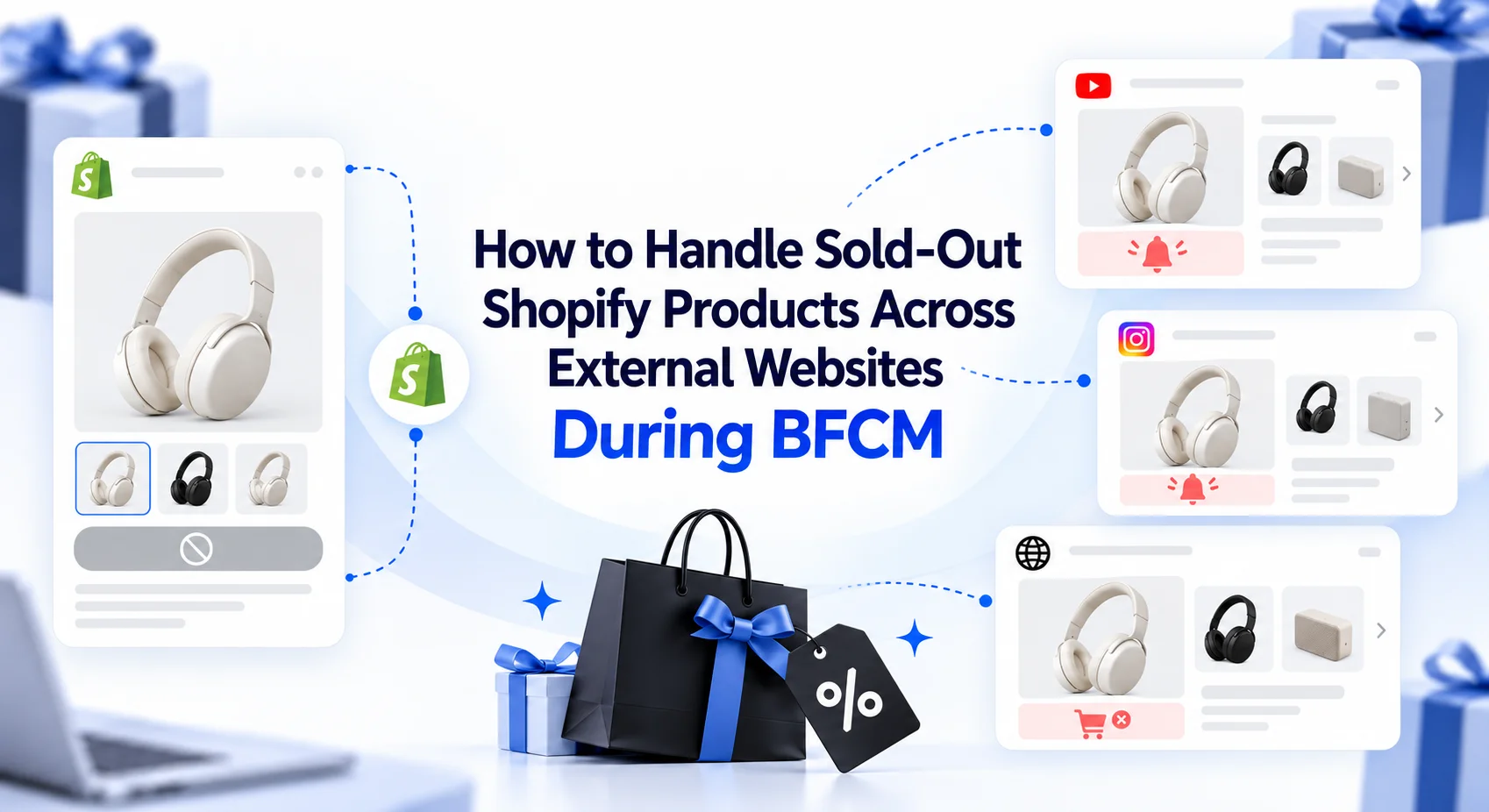
How to Handle Sold-Out Shopify Products Across External Websites During BFCM
When popular Shopify products sell out during BFCM, merchants need to respond across every external website promoting them. This guide explains how to handle unavailable variants, update embedded product placements, choose suitable alternatives, use collection embeds, and keep external campaigns useful as product availability changes.
18 min read