Shopify Ghost: How to Sell Shopify Products on a Ghost Blog
 Anika Anamta Mehnaz15 min read
On this page
- Key takeaways
- The newsletter that sent readers away
- Why Ghost and Shopify work well together
- Three ways to add Shopify products to Ghost
- Method 1: a linked product image
- Method 2: Shopify's Buy Button in an HTML card
- Method 3: EmbedUp in an HTML card
- How Mara would set it up
- Buy Button or EmbedUp: a closer look
- HTML card or code injection?
- The email problem, and how to solve it
- Show products to members only
- Which Ghost plan do you need?
- Worked example: Mara's recipe post
- Post types that sell well on Ghost
- Track sales from Ghost
- Where to place products in a Ghost post
- Before you publish: a short checklist
- Common mistakes when adding Shopify to Ghost
- What EmbedUp doesn't do here
- Try it on one post
- FAQs
To sell Shopify products on a Ghost blog, keep Shopify as your store and paste product embed code into a Ghost HTML card, either with Shopify's free Buy Button or an embed app such as EmbedUp. Ghost has no cart or inventory of its own, and embeds don't run inside email newsletters, so use a linked product image in the email version of each post.
Key takeaways
Ghost isn't a store. Its help center says it has no built-in cart or inventory, and points to integrations such as Shopify, per Ghost's ecommerce help page.
The HTML card is where products go. Ghost's official Shopify integration guide uses Buy Button code pasted into an HTML card.
Cards can be shown to some readers only. Ghost cards support visibility for public visitors, free members or paid members, per Ghost's cards help page.
Email is different. Email clients disable JavaScript and iframe embeds, so product widgets won't work in the newsletter, per Ghost's help on embeds in email.
Ghost isn't named on EmbedUp's listing. The listing names WordPress, Webflow, Wix and landing pages. Test EmbedUp on a draft Ghost post before you rely on it.
The newsletter that sent readers away
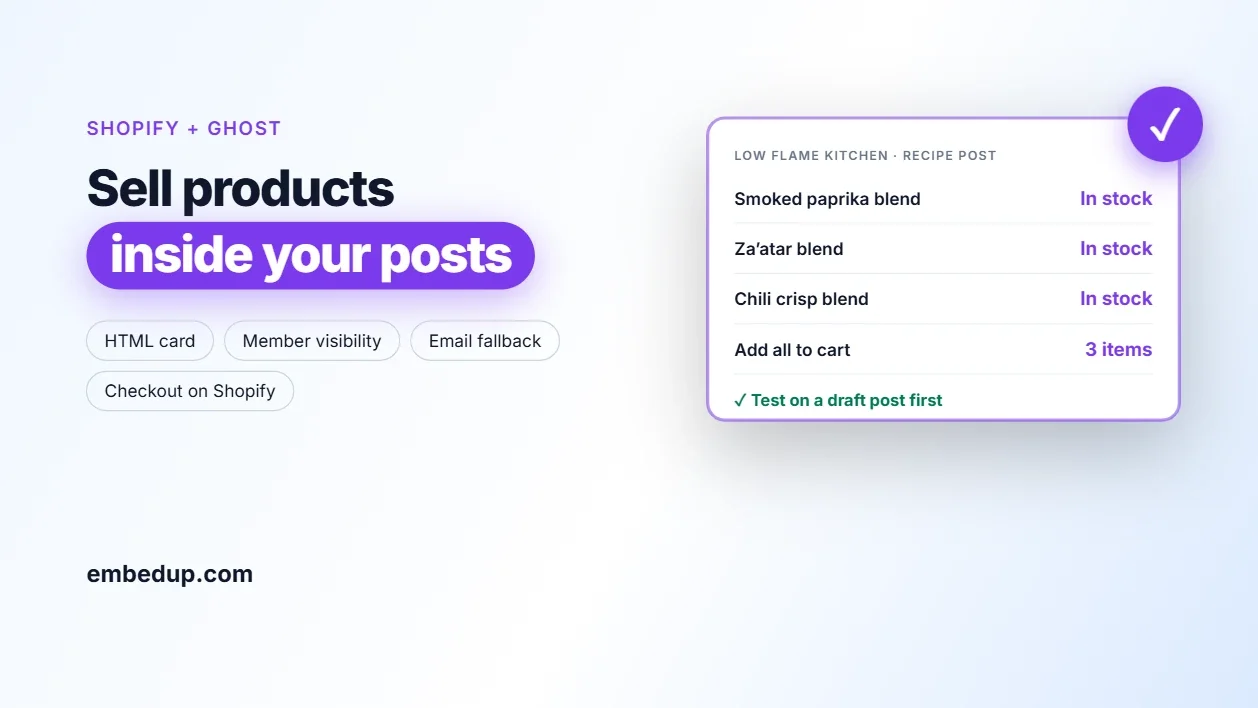
Picture a cooking writer. Call her Mara, of Low Flame Kitchen. She runs a Ghost newsletter with 9,000 readers and sells a small range of spice blends on Shopify.
Every week she writes a recipe, and at the bottom she adds: "The blend I used is in my shop." The link goes to her Shopify home page. Readers land there, look for the blend among 30 products, and many give up.
Her best recipe last month used three blends. Readers who wanted all three had to find each one, add it to the cart and come back. Very few did.
What she needed was simple: the three blends, with photos and prices, right under the recipe, with one button to add them all. That's what this guide sets up.
Why Ghost and Shopify work well together
Ghost is built for publishing and memberships. Shopify is built for selling. Keeping them separate is a strength:
Your writing stays on Ghost, with its editor, newsletter and member tools.
Your products, stock, checkout and payments stay on Shopify. You don't have to run two stores.
Readers buy where they read. An embedded product card turns a recommendation into a sale without a hunt.
Ghost says this itself. Its ecommerce help page explains that Ghost has no cart or inventory and suggests using an ecommerce integration instead. Shopify is one of the official ones.
Yeah, but Ghost has paid memberships. Why not sell through those? Ghost memberships are great for selling access to your writing. They aren't built for physical products, shipping or stock. Use memberships for subscriptions and Shopify for products. The two fit together, as you'll see below.
Three ways to add Shopify products to Ghost
Method | What readers see | Cost | Best for |
|---|---|---|---|
A plain link | Text or an image linking to the product page | Free | Very occasional mentions |
Shopify Buy Button | A product card with a buy button in the post | Free sales channel in Shopify | One product per card, simple layouts |
EmbedUp | Product cards, grids or bundles with add-all-to-cart | Free to $29.99 a month | Several products per post, bundles, tracking |
EmbedUp prices from its App Store listing, checked 23 November 2026.
All three keep checkout on Shopify. The difference is how much readers can do before they get there.

Three ways to add Shopify products to a Ghost blog
Method 1: a linked product image
The simplest option. Add an image card with the product photo and link it to the product page on Shopify.
It works everywhere, including in email. It doesn't show price or stock, and readers still leave the post to buy.
Use it as your email fallback even if you use one of the other methods on the web.
Method 2: Shopify's Buy Button in an HTML card
This is the method Ghost's own Shopify integration guide describes. You create a Buy Button in Shopify and paste its code into an HTML card in Ghost.
In Shopify, add the Buy Button sales channel.
Create a Buy Button for a product or collection, and pick a layout.
Copy the embed code. Shopify's help page on adding Buy Button embed code covers this step.
In Ghost, open your post and add an HTML card where the product should appear.
Paste the code into the card.
Preview the post and test the button on desktop and phone.
The Buy Button is free and reliable. Its limits show up when a post mentions several products. Each button is a separate block of code, and there's no built-in way to add a set of products to the cart together.
Method 3: EmbedUp in an HTML card
EmbedUp is a Shopify app for embedding products and bundles on other websites. You build a component in the app, copy its code, and paste it where you want the products to show.
Here's what each plan lists on the App Store, checked 23 November 2026:
Plan | Price per month | What's included |
|---|---|---|
Starter | Free | 1 component with up to 3 products |
Growth | $14.99 | 10 components, add all to cart, preset bundles, inventory check, custom CSS, 24/7 chat |
Pro | $29.99 | 50 components, affiliates, commissions, UTM campaign analytics, order attribution |
The listing shows a 5.0 rating from 3 reviews and a 5-day trial. It's a young app, so weigh that.
An important note: EmbedUp's listing names WordPress, Webflow, Wix and landing pages. It doesn't name Ghost. Because Ghost's HTML card accepts standard embed code, we'd expect it to work, but please test it on a draft post first and check every button before you publish.
How Mara would set it up
Menu names may change over time.
Install EmbedUp on the Shopify store.
Create a component with the three spice blends from the recipe.
Pick a layout. A row of three cards fits under a recipe.
Turn on add all to cart (Growth plan), so readers can take the whole set in one click.
Turn on the inventory check, so a sold-out blend doesn't show a buy button.
Copy the embed code.
In Ghost, add an HTML card under the recipe and paste the code.
Preview the draft on desktop and phone. Add each product, then all three, and go through to the Shopify checkout.
Add an Email content card with a linked image for the newsletter (see below).
Publish once everything works.

Embed Shopify products in a Ghost post with EmbedUp in 10 steps
Buy Button or EmbedUp: a closer look
Both methods put Shopify products in a Ghost HTML card. Here's how they differ on the things writers ask about most.
Question | Shopify Buy Button | EmbedUp |
|---|---|---|
Is it free? | Yes, it's a Shopify sales channel | Starter is free for 1 component with up to 3 products |
Several products in one card? | Collection buttons are possible; each product has its own button | Yes, a component can hold several products |
Add a whole set to the cart at once? | Not built in | Add all to cart on Growth |
Preset bundles? | No | Yes, on Growth |
Hides or flags sold-out items? | Shows availability from Shopify | Inventory check on Growth |
Style it to match your theme? | Layout and color options in Shopify | Custom CSS on Growth |
Track which post sold what? | Use UTM links and Shopify reports | UTM campaign analytics and order attribution on Pro |
Named for Ghost? | Yes, in Ghost's own integration guide | No. Test on a draft first |
Sources: Ghost Shopify integration, Shopify Help Center, EmbedUp App Store listing, checked 23 November 2026.
A simple rule: if a post mentions one product, the Buy Button is enough. If a post mentions a set, like Mara's three blends, an app that adds them all at once saves the reader several clicks.
HTML card or code injection?
Ghost gives you two places for code, and it helps to know which one to use.
The HTML card holds code for one spot in one post. Product cards go here, so they appear exactly where the reader needs them.
Code injection, under Settings → Advanced in Ghost admin, adds code to the head or footer of every page on the site. Ghost's code injection guide covers how it works.
For most product embeds, the HTML card is all you need. Use site-wide code injection only if an embed's own instructions ask for a script on every page, such as a cart that should stay open as the reader moves between posts. Adding scripts site-wide when you don't need them can slow every page down, including posts with no products at all.
If you're unsure, start with the HTML card on one draft post. If everything works there, you don't need code injection.
The email problem, and how to solve it
Most Ghost writers publish to the web and send the same post as an email. That's where product embeds stop working.
Ghost's help center is clear about this: email clients disable JavaScript and iframe embeds, so embeds don't show in newsletters. The suggested workaround is to use a screenshot or image that links to the content on the web, per Ghost's email embeds help.
So each post needs two versions of the product block:
Web version | Email version | |
|---|---|---|
Card type | HTML card with embed code | Email content card with a linked image |
Shows | Live price, stock, add to cart | Product photo and a short line |
Where it appears | The published post | The newsletter only |
Ghost has an Email content card for exactly this: content in it appears in the newsletter but not in the published post, per Ghost's cards help. Put the linked product image in an Email content card, right below the HTML card. Then send yourself a test email and check how the HTML card's space looks, since its embed won't run there.
Write the email image line as an invitation: "Get all three blends. Tap to shop." Link it to the post on the web, where the full product card works, or straight to the Shopify product.
Yeah, but that's extra work for every post. It's about two minutes once you have a template. Take one screenshot of the product card, add it to an Email content card and paste the link. Make it part of your publish checklist.
Show products to members only
Ghost cards can be shown to everyone, to free members only or to paid members only, per Ghost's cards help. That opens up some useful ideas:
A member price. Show paid members a card with a bundle at a better price. Pair it with a discount in Shopify.
Early access. Show a new product to paid members a week before the public post.
A free member nudge. Show public visitors a card that says "Members get the recipe kit. Join free to see it."
Keep it honest. A product that only some readers can see should be clearly labeled as a member offer, so nobody feels tricked.
Which Ghost plan do you need?
Ghost's hosted plans have different limits. From Ghost's pricing page, checked 23 November 2026:
Plan | Price (up to 1,000 members, billed yearly) | Notes for embedding products |
|---|---|---|
Starter | $15 a month | Simple design settings, no custom or marketplace themes, no paid subscriptions |
Publisher | $29 a month | Custom themes, 8,000+ integrations, paid subscriptions, 3 staff users |
Business | $199 a month | 15 staff users, 10,000 members, higher usage limits |
Prices rise with the size of your audience, so a newsletter like Mara's, with 9,000 readers, pays more than the figures above. Use the member slider on the pricing page to see your own number.
If you're on Starter, check that HTML cards with your embed code work on your plan before you plan around them. And note that member-only product cards for paid members need paid subscriptions, which Starter doesn't include.
Self-hosted Ghost is also an option. It has no plan limits, but you manage the server yourself.
Worked example: Mara's recipe post
Here's Mara's post with the products set up. The numbers are made up.
Part of the post | What it shows | Visible to |
|---|---|---|
Intro and recipe | Text and photos | Everyone |
Product card (EmbedUp) | Three blends with add all to cart | The published post |
Email content card | Photo of the three blends, "Tap to shop" | |
Member bundle card | Three blends plus a recipe card at a member price | Paid members, on the published post |
After a month, Mara compares two things in Shopify: orders from the recipe posts and the average order value. Her made-up result: more orders from posts with the product card than from link-only posts, and more orders with all three blends.
If you want to know exactly which post sold what, EmbedUp's Pro plan lists UTM campaign analytics and order attribution. You can also add UTM tags to the links in your email image, so Shopify reports show traffic from the newsletter.
Post types that sell well on Ghost
Not every post should carry a product. These are the formats where a product card feels useful, not pushy.
Recipes and how-tos. The reader needs the thing to follow along. Mara's spice blends are the clearest case.
"What I use" posts. A tour of your desk, kitchen or kit. Readers already want to know where to buy.
Reviews and comparisons. Put the product card after the verdict, not before.
Gift guides. A grid of products with short notes works well. Our guide to a shoppable gift guide has layout ideas.
Launch posts. When you release a new product, the post is the launch page.
Member-only extras. A kit or bundle offered to paid members alongside a deep-dive post.
Posts that rarely suit a product card: news, opinion pieces and personal essays. A buy button there reads like an ad in the middle of a conversation.
Track sales from Ghost
You'll want to know whether the product cards earn their place. There are three simple ways to see it.
UTM tags on links. Add UTM parameters to the links in your Email content card and any text links, such as
utm_source=ghost&utm_medium=newsletter&utm_campaign=plus the post's slug. Shopify's reports then show traffic and sales from each campaign.Shopify's sales channel reports. If you use the Buy Button, orders come through the Buy Button sales channel, so you can see them separately.
App analytics. EmbedUp's Pro plan lists UTM campaign analytics and order attribution, which tie orders back to the component.
Check once a month. Look for the posts that sell, and write more like them. Look for the cards nobody clicks, and move or remove them.
Where to place products in a Ghost post
Where the product sits in a post decides whether readers see it.
Right after the moment of need. In a recipe, after the ingredients list. In a review, after the verdict.
Not in the first paragraph. Readers came for the writing. Let them get into it first.
Once, maybe twice. One card after the key section, and a reminder at the end for long posts.
On a phone, check that the card isn't cut off and the buttons are easy to tap.
For more ideas on placement and content types, see our guide to monetizing a blog with Shopify products.
Before you publish: a short checklist
Run through this on the draft every time. It takes about five minutes.
The HTML card shows the right products, prices and photos.
Each buy button adds the right item, and add all to cart adds the whole set.
Checkout opens on Shopify and shows the right total.
Sold-out items are hidden or clearly marked.
The card looks right on a phone.
The Email content card has a linked image and a short line.
A test email shows the linked image and no broken space.
Member-only cards are set to the right audience.
Links carry UTM tags for this post.
Common mistakes when adding Shopify to Ghost
Linking to the home page. Link to the exact product, or embed it.
Forgetting the email version. Readers see a blank space or nothing at all.
No stock check. A buy button for a sold-out product frustrates readers. Use an inventory check or update the card.
Too many cards. A post with five product blocks reads like an ad.
Not testing checkout. Go all the way to Shopify checkout from a draft before you publish.
Assuming it works on every plan. Check Ghost's plan limits and test the embed.
What EmbedUp doesn't do here
It doesn't run inside email newsletters. No embed does. Use a linked image.
It doesn't replace Ghost memberships. Use Ghost for paid subscriptions.
It isn't listed for Ghost. The listing names WordPress, Webflow, Wix and landing pages. Test first.
It doesn't handle checkout. Checkout and payments stay on Shopify.
If you're choosing between embed apps, our checklist on how to choose a Shopify embed app in 7 checks covers what to compare.
Try it on one post
Pick your most-read post that mentions a product. Create a component with the Shopify embed app EmbedUp, paste the code into an HTML card on a draft copy of the post, and test the buttons all the way to checkout. Add a linked image for email, then publish.
For other platforms, see our guide to selling Shopify products outside your store.
FAQs
Can I sell Shopify products on Ghost?
Does Ghost have a shopping cart?
Do Shopify product embeds work in Ghost newsletters?
Can I show products only to paid members on Ghost?
Is EmbedUp officially supported on Ghost?
- Shopify buy button vs EmbedUp
- Shopify content commerce
- embed Shopify products in blog posts
- shopify ghost
Related articles
 Embed Shopify Products
Shopify Framer Integration: How to Sell Shopify Products on Framer
Last checked: 17 November 2026, against Framer’s help articles and Academy lessons, Framer’s pricing page, the Framer Marketplace listings for Framer Commerce and Shopify Sellflow, and the EmbedUp listing on the Shopify App Store. Who this is for: brands, creators and agencies with a Framer site who want shoppers to buy Shopify products on it, without rebuilding the store. Reading time: about 16 minutes.
17 min read
 Embed Shopify Products
How to Sell Shopify Products on a Webflow Site (3 Ways Compared)
Last checked: 10 November 2026, against Webflow's Shopify integration page and Help Center, Shopify's Buy Button and developer docs, and the Shopify App Store listings named below. Who this is for: brands with a Shopify store and a Webflow site, and agencies who build Webflow sites for Shopify merchants. Reading time: about 15 minutes.
16 min read
 Embed Shopify Products
How to Make a Shoppable Holiday Gift Guide Readers Can Buy From
Last checked: 2 November 2026, against the EmbedUp App Store listing, embedup.com, ShipStation's 2026 holiday shipping deadlines, and the NRF 2026 holiday forecast. Who this is for: Shopify merchants, bloggers, and content teams who publish a holiday gift guide on a blog or website. Reading time: about 16 minutes.
17 min read